

Benjamin
1:15
Password-protect your site in Framer
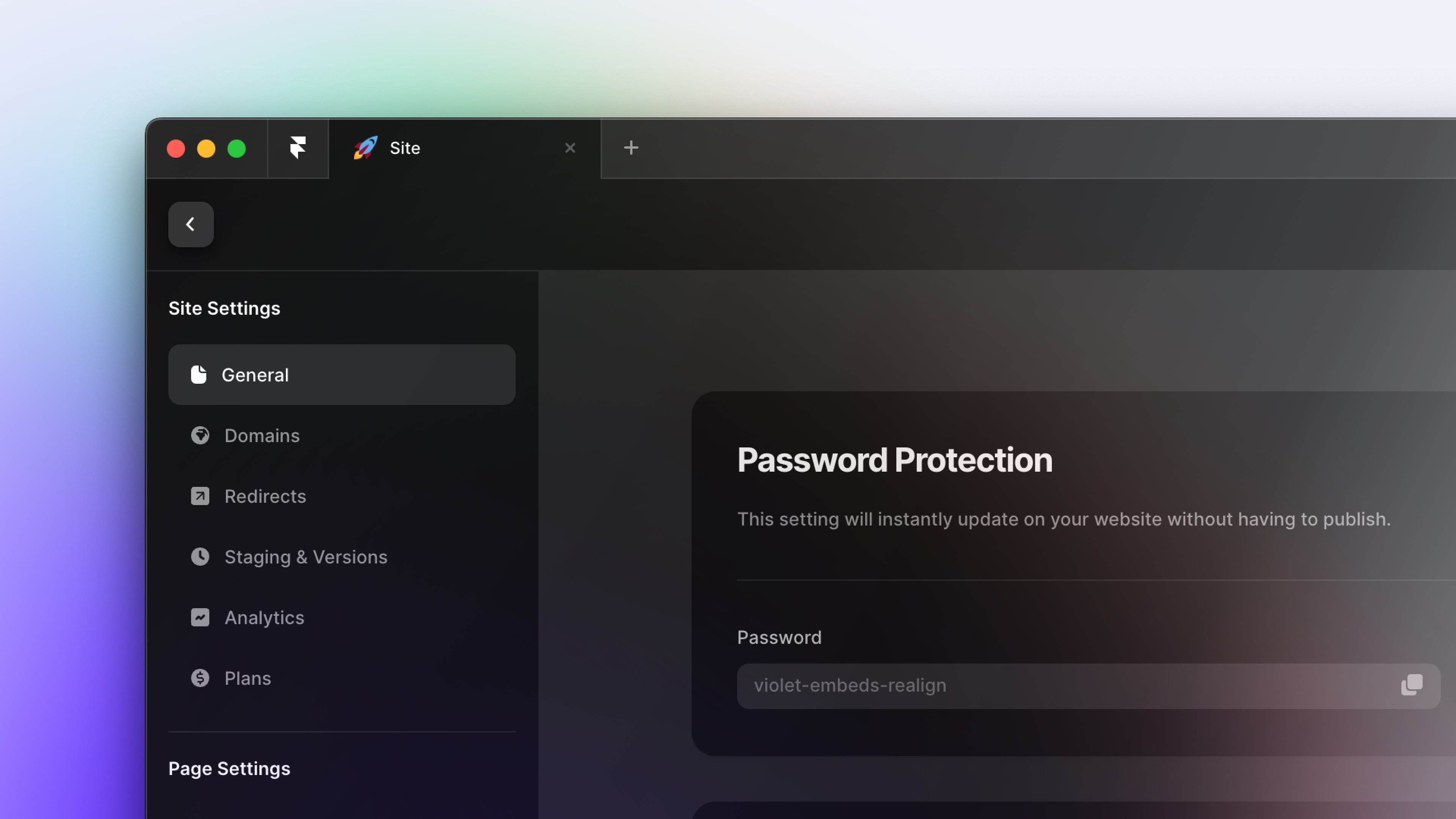
Password-protect your site in Framer from the general project settings. Enable Password Protection, use the generated password or replace it with your own, and share it only with the intended visitors. The setting updates without a new publish, while a later republish asks previously authenticated visitors to enter the password again.
Lesson details
In this Framer tutorial, you will learn Add Password Protection. We explain a practical workflow, highlight the key settings that affect the result, and show how to apply the technique on real pages for cleaner UX and better site performance.
Frequently asked questions
How do I password-protect a site in Framer?
Open the project settings, go to the general tab, and enable Password Protection. Framer creates a password that you can keep or replace with your own value.
Do I need to republish after changing the password?
No. Enabling, editing, or disabling Password Protection updates the site without another publish. Open the live site in a private browser window to verify the current setting.
Will visitors need to enter the password every time?
The browser remembers the password during normal use, so a visitor does not need to enter it after every reload. Republish the site and the visitor will need to authenticate again.
How do I remove Password Protection?
Return to the general project settings and disable the Password Protection toggle. The live site becomes accessible without a password once the setting updates.
Is Password Protection the same as user accounts?
No. Password Protection places one shared password in front of the site. It does not create individual users, roles, or account-specific access controls.