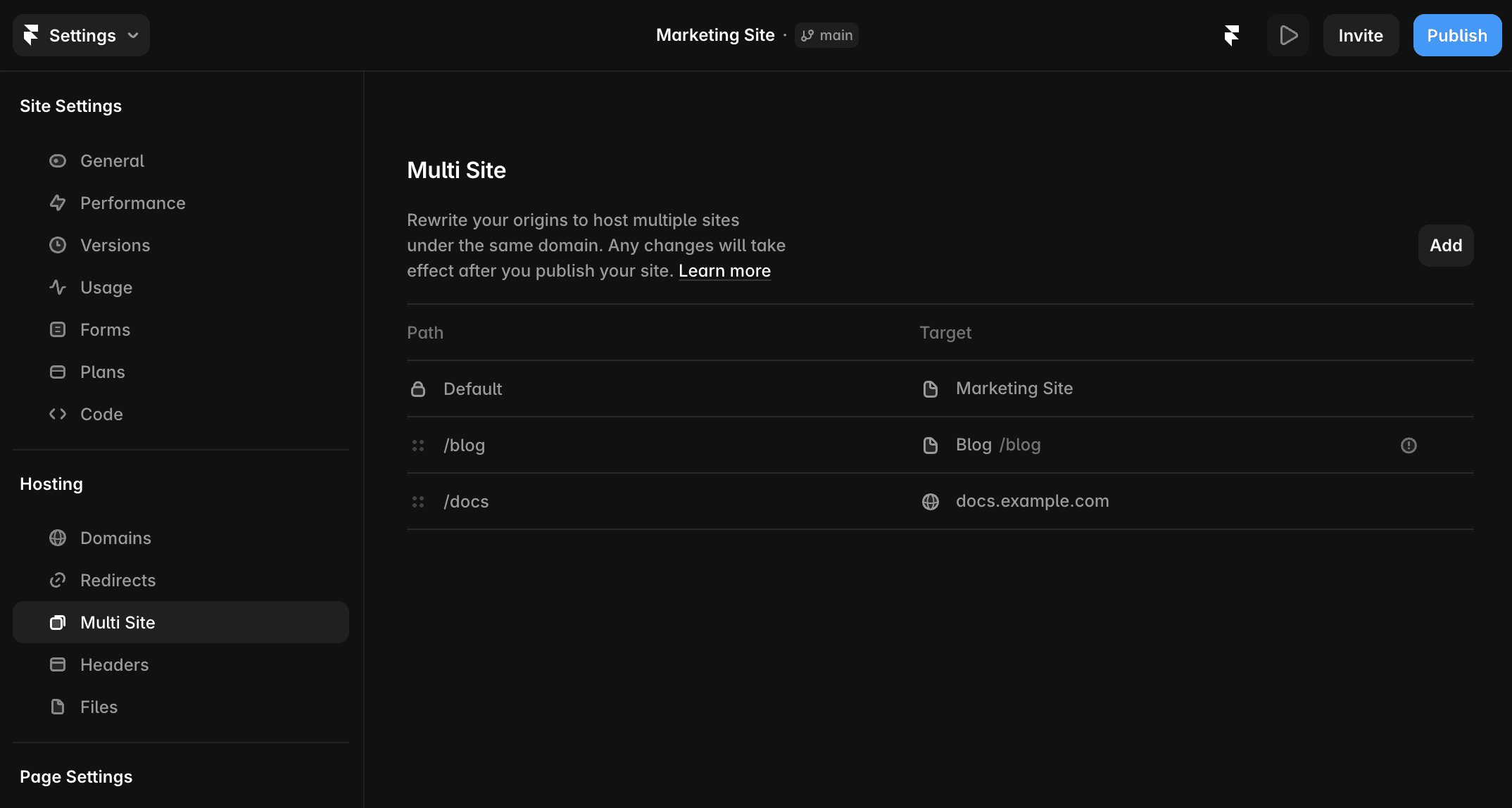
Multi Site lets you manage rewrites directly in Framer without configuring a custom reverse proxy through a service such as Cloudflare or Vercel.
These settings used to live in the Domains dashboard and are now in your project’s Site Settings, under Hosting.
About Multi Site rewrites
A rewrite serves content from another Framer project or an external source while keeping the original URL visible in the browser. Unlike a redirect, a rewrite does not send visitors to a different URL.
For example, you can serve:
Your main site at
example.com.A separate Framer blog at
example.com/blog.Externally hosted documentation at
example.com/docs.
Visitors can access each site through one unified domain.
Common uses
Migrate gradually from another platform. Move selected pages or sections to Framer while keeping the rest of your existing site active. Follow the page-by-page migration guide.
Organize a large website. Divide your site into smaller projects that can be developed and maintained independently.
Combine Framer with external tools. Integrate a shop, documentation site, or custom application with your Framer site. If you currently use another proxy host, follow the external proxy migration guide.
Support multiple teams. Let teams work on separate sections of the website without creating project conflicts
Add a rewrite rule
Open the Framer dashboard.
Open Site Settings.
Open Hosting → Multi Site.
Click the Add button.
Enter the path where you want the content to appear, such as
/blogor/blog/*.Select a rewrite type:
Project routes requests to another Framer project.
External routes requests to an external website.
Configure the target:
For a project, select the Framer project and enter its target path.
For an external website, enter its full HTTPS URL.
Click Add.
Open and publish your project for the rule to take effect.
A target Framer project must have a paid plan and be published to either a custom domain or a Framer subdomain, such as example.framer.website.
Use path patterns
Rewrite rules support wildcards, dynamic parameters, and capture groups.
Pattern | Purpose | Example |
|---|---|---|
| Matches paths beneath a prefix |
|
| Captures a named dynamic segment |
|
| Inserts wildcard capture groups into the target path | A source path of |
Learn more about path patterns and capture groups.
Manage rewrite rules
Rules are evaluated in the order shown in the Multi Site list.
Drag and drop rules to change their priority.
Open the
···menu, or right-click a rule, to edit or delete it.Publish the project after making changes.
If a Framer page and a rewrite rule use the same path, the rewrite takes priority and serves content from the target instead of the Framer page.
Configure localized rewrites
Locale expansion automatically prefixes a rewrite path with every enabled locale code when you publish. For example, one rule can be expanded to include /nl and /de.
Locale expansion only adds the locale prefix. It does not translate paths or slugs. If a rule refers to a localized path, add a separate rule for each locale.
Learn more about locales.
Prepare external sites for subpaths
Some external sites load scripts, fonts, styles, and media from root-relative paths. When you rewrite one of these sites to a subpath such as example.com/docs, its browser requests may still point to the root of example.com, causing assets to fail to load.
This behavior comes from the links generated by the external application rather than the Framer rewrite. Configure a base path or asset prefix in the origin application so its URLs include the rewritten subpath, then redeploy it. Also check files referenced directly from static folders, as their paths may need to be updated manually.
Configure CMS and SEO settings
Keep the following requirements in mind:
CMS collections: The collection path must match between the rewrite rule and the origin project. If the origin uses
/blog/:slug, use the same path in the rewrite instead of a different path such as/posts/:slug.Canonical URLs: Set canonical URLs in each project to the final domain from which the pages will be served.
Sitemaps: Framer automatically generates and combines sitemaps from all rewrite sources.
Understand security and proxy behavior
Cookies: Rewrites forward cookies from your site to external destinations. External destinations can also set cookies, so only rewrite to services you trust.
Password protection: Password protection applies only to the main project. Protection enabled on a target project does not protect its content when served through a rewrite.
HTTPS: Framer can proxy only HTTPS origins. Plain HTTP origins are not supported.
Content Security Policy: The browser enforces your Content Security Policy. Framer does not modify proxied HTML.
Request handling: The proxy supports all request methods and can pass through non-HTML content without inspecting or rewriting it.
DDoS protection: Requests identified as attacks trigger a challenge page.
Analytics limitations
Analytics, A/B tests, and funnels currently track only the main project. They do not include visits or events from pages served through rewrites.
FAQ
Why does an external site look broken when I serve it from a subpath?
The external application may be generating root-relative asset URLs that do not include your rewrite path. Configure a base path or asset prefix in the origin application, update any static asset references, and redeploy it.
What happens if a page and a rewrite rule use the same path?
The rewrite rule takes priority over the Framer page. Visitors will receive content from the rewrite target instead of the page in the main project.
Does password protection cover content served through rewrites?
Password protection applies only to the main project. Enabling it on a target project does not protect that project’s content when the content is served through a rewrite.