Firewall rules let you control how visitors reach your site based on the country they are in and the path they request. Use them to send visitors to a regional site, keep a path available in some countries only, or block traffic you do not want to serve.
Firewall is available with the Advanced Hosting add-on and on Enterprise plans.
About firewall rules
A firewall rule combines an action with conditions:
Action is what happens on a match: redirect the visitor to a locale, another URL or path, or block the request.
Conditions match the visitor’s country, the requested path, or both. Each condition can be inverted, so a rule can also match everything except the countries or path you select.
Country conditions don’t apply to AI agents and link-preview bots (for example ChatGPT, Slack or Facebook previews), which fetch pages from data-center IPs. Search engine crawlers such as Googlebot are treated like regular visitors from their IP’s country.
Firewall rules apply to your published site, so publish your project after adding, editing or deleting rules.
Add a firewall rule
Open your project and go to Site Settings → Hosting → Firewall.
Click the Add button.
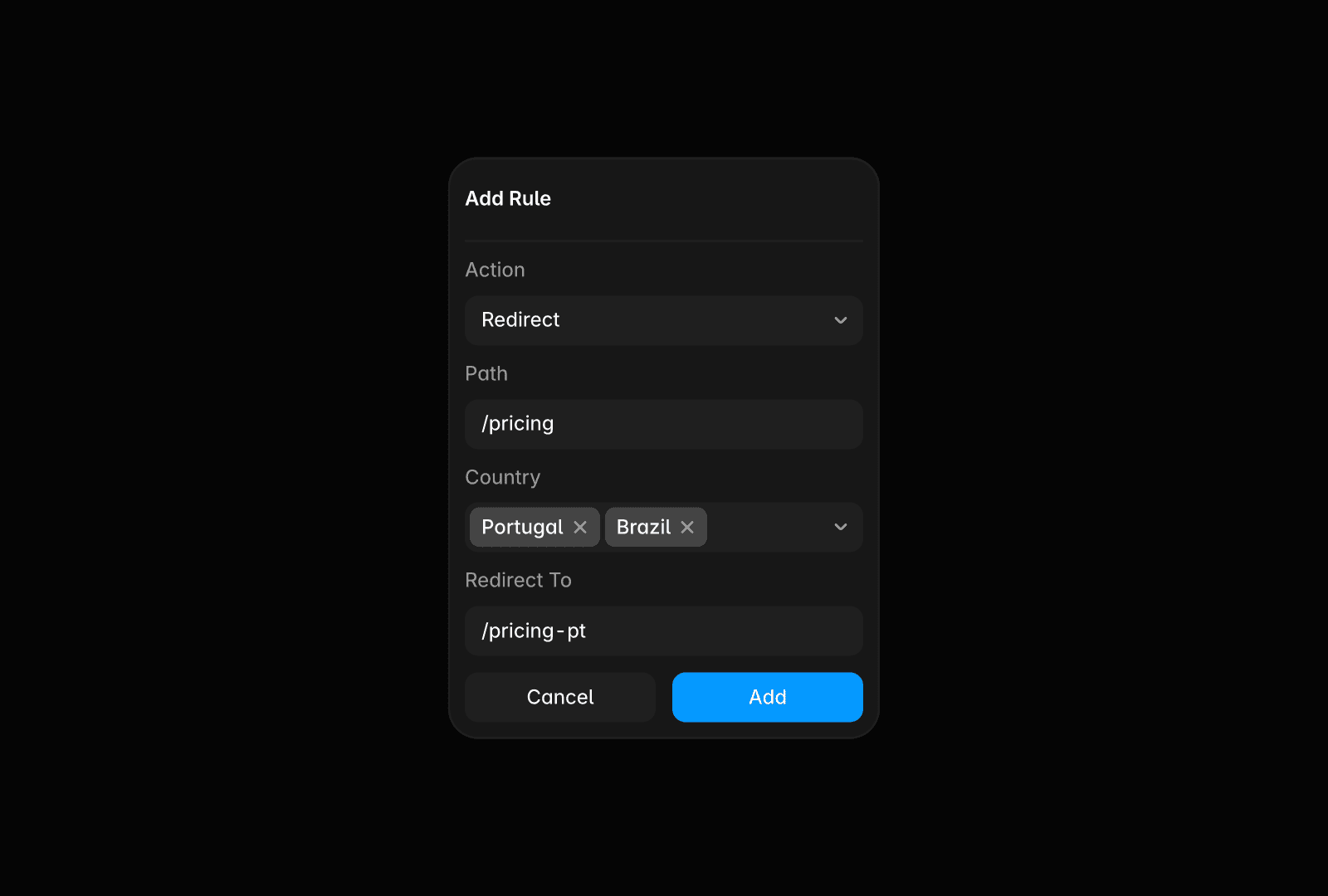
Choose an Action: Redirect, Redirect to Locale, or Block.
Enter the Path the rule applies to. Click the field to pick a path pattern and Framer inserts a template you can edit.
Click the Country field, search for a country, and select it. Repeat to add more countries. Selected countries appear as chips you can remove individually.
For a redirect, enter the Redirect To target, or select the locale to send visitors to.
Click Add.
Publish your project for the rule to take effect.
Use path patterns
The Path field offers the same patterns as redirects:
Pattern | Purpose | Example |
|---|---|---|
Exact Path | Matches one path |
|
Path and Subpaths | Matches everything under a path |
|
Wildcard | Matches every path on your site |
|
Parameter | Captures a named segment you can reference in the redirect target |
|
Learn more about path patterns and capture groups.
Available actions
Redirect sends visitors to another page. It also applies to visitors on locale pages.
Redirect to locale sends visitors to a different locale on your site. Visitors who are already on a locale are skipped.
Block does not send any content.
Inverting conditions
Every condition can be inverted:
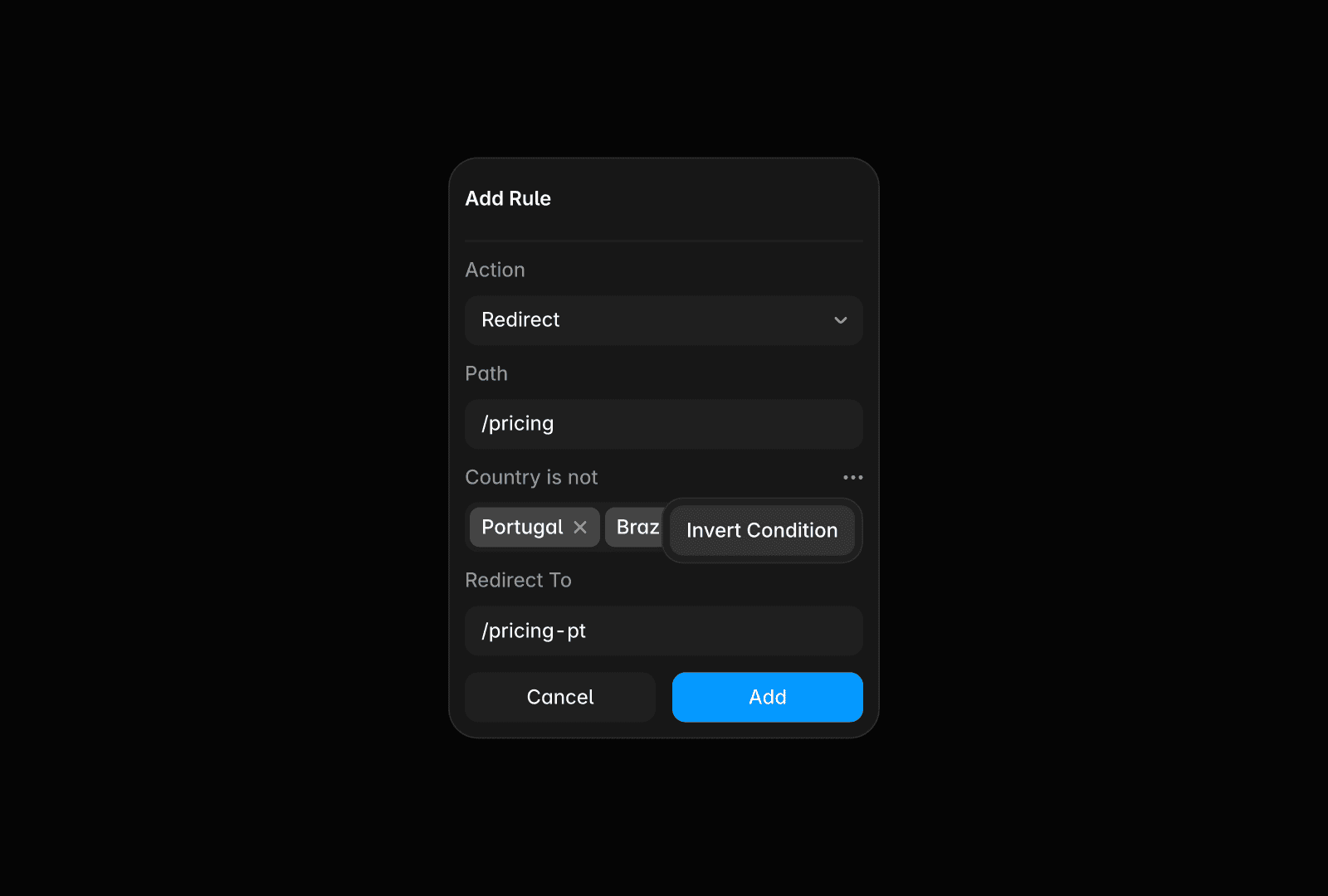
Hover the Path or Country label in the rule.
Click the ⋯ menu.
Choose Invert Condition.
The label changes to Path Is Not or Country Is Not, and the rule then matches everything outside the value you selected. In the rules list, inverted country conditions read as “All except” followed by the countries.
Manage firewall rules
Rules are evaluated in the order shown in the Firewall list.
Drag and drop rules to change their priority.
Open the ⋯ menu on a rule to edit or delete it.
When a rule matches several countries, the list shows the first three, followed by “+ 2 others” for the rest.
Firewall and Automatic Locale
Firewall runs first. If a rule sends a visitor to a locale, Automatic Locale won’t redirect them again.
For example, a rule sends visitors in Canada to /ca. A French-speaking visitor in Canada lands on /ca, not /ca-fr.
Still not sure how to set up a rule? Get in touch with us via our contact page for more help.