

Benjamin
3:00
Restore earlier work with Version History in Framer
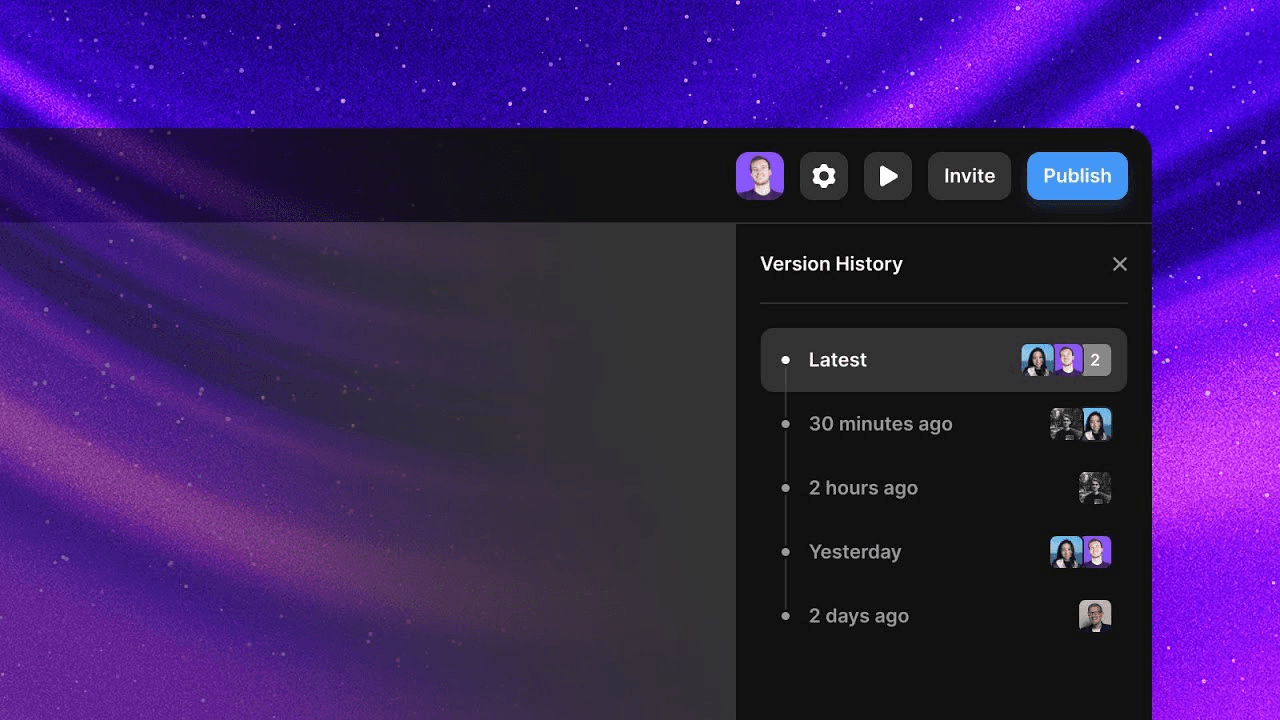
Use Version History in Framer to recover layers and sections from earlier edits. Open saved versions, copy the content you need, and paste it into the latest version without restoring the complete project. Framer saves versions during active editing and can replace an existing section while preserving its breakpoint structure.
Lesson details
In this Framer tutorial, you will learn Revive past versions with the Version History panel.. We explain a practical workflow, highlight the key settings that affect the result, and show how to apply the technique on real pages for cleaner UX and better site performance. See Version History Update.
Frequently asked questions
How do I open Version History in Framer?
Open Version History from the File menu or Quick Actions. You can also use Command-Shift-H on Mac or Control-Shift-H on Windows.
How often does Framer save versions?
Version History records snapshots during active editing, approximately every ten minutes in the workflow shown. The timeline includes work from you and your collaborators.
Can I restore one layer without restoring the complete project?
Yes. Open an earlier version, copy the layer or section you need, return to the latest version, and paste it into the current layout.
Can Version History replace an existing section?
Yes. When you paste an earlier copy of a section that already exists, Framer can offer to replace the current section instead of adding a duplicate. Review the result before continuing your edits.
Does restoring a section preserve its breakpoints?
The replacement workflow shown preserves the breakpoint structure attached to the section. Check each breakpoint after restoring because the surrounding page may have changed since that version was saved.
Continue watching
Load more