

Benjamin
12:47
Create scroll animations in Framer
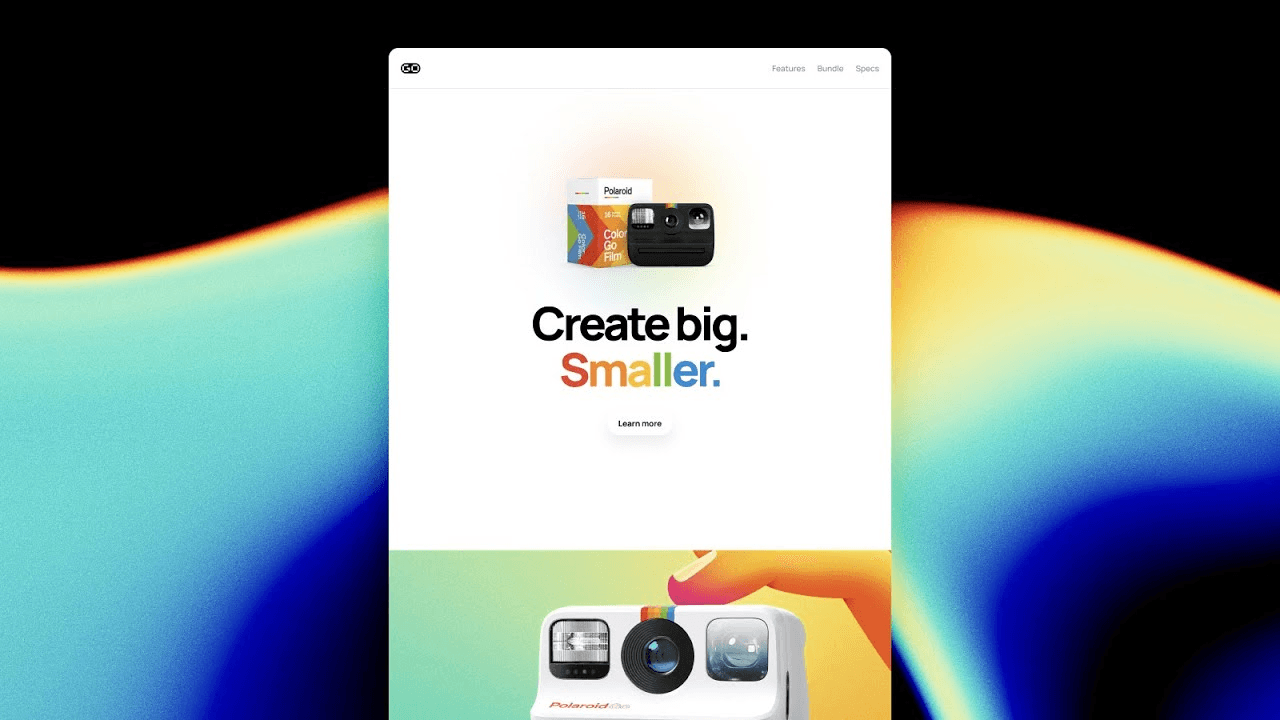
Create scroll animations in Framer by naming Scroll Sections and connecting them to Variants and effects. This lesson shows how a fixed navigation can change as different sections enter view, how to target specific parts of a page, and how to preview the result while keeping the animation tied to the page structure.
Lesson details
In this Framer tutorial, you will learn Scroll Animations. We explain a practical workflow, highlight the key settings that affect the result, and show how to apply the technique on real pages for cleaner UX and better site performance.
Frequently asked questions
How do scroll animations work in Framer?
Scroll animations connect the visitor’s position on a page to an effect or Variant change. Name the relevant Scroll Sections, choose the target element, and define how it should look or move while each section is active.
What is a Scroll Section in Framer?
A Scroll Section is a named part of a page that other interactions can target. Naming sections makes it possible to link navigation and animation behavior to specific parts of the layout.
Can a navigation change color while scrolling?
Yes. Create the required navigation Variants, then connect each Variant to the matching Scroll Section. A fixed top bar can switch its background, text, and link colors as the visitor moves through the page.
Do scroll animations require code?
No. You can set up the Scroll Sections, Variants, and effects from the Framer interface. Preview the page to check the transitions and adjust the timing or visual states on the canvas.
What should I check when testing a scroll animation?
Confirm that each section has a unique name, the correct Variant is assigned, and the change happens at the intended point in the scroll. Test the page at each breakpoint because section heights can change between layouts.