
Justin
2:27
Add Custom Code to your site in Framer
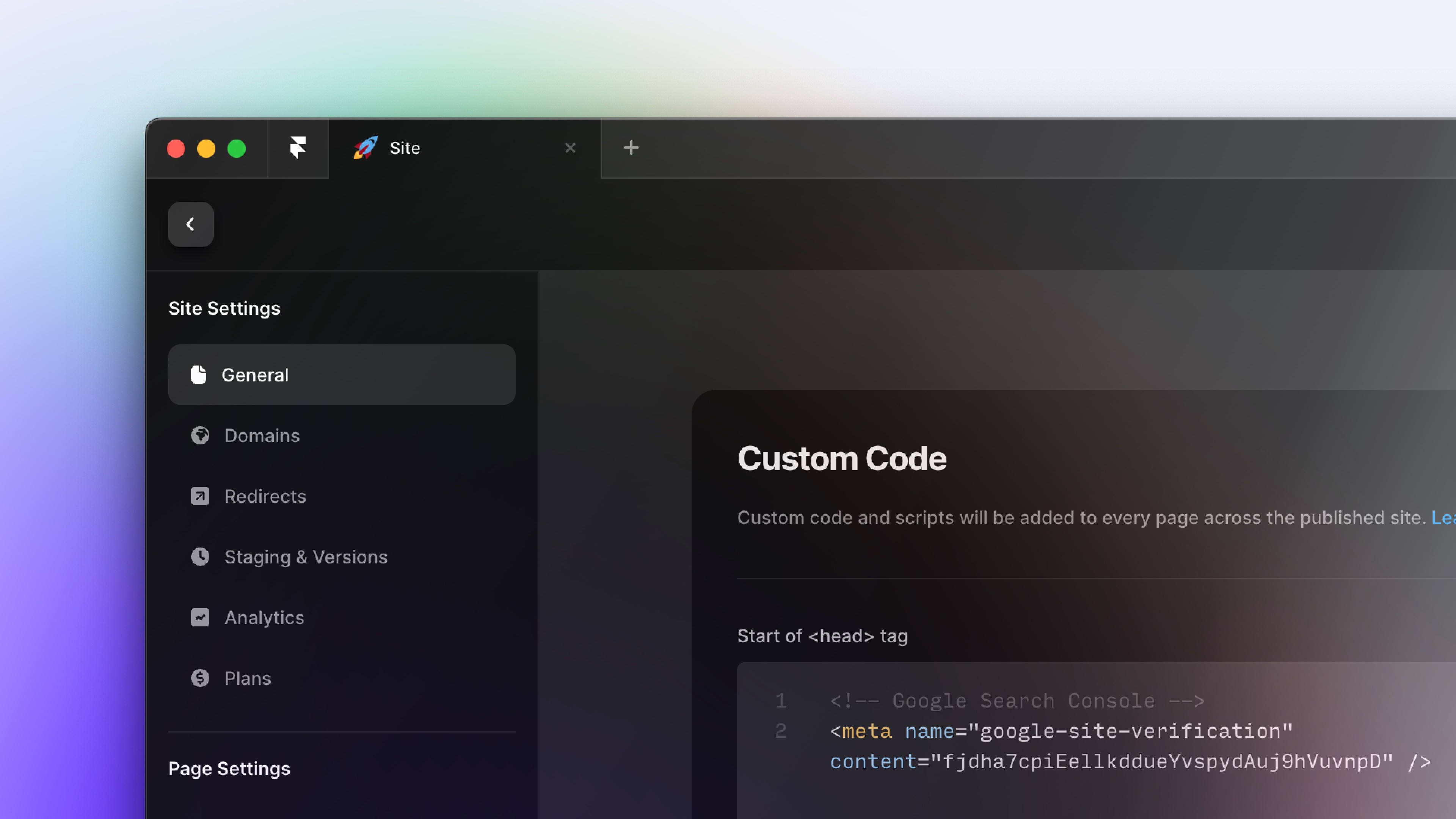
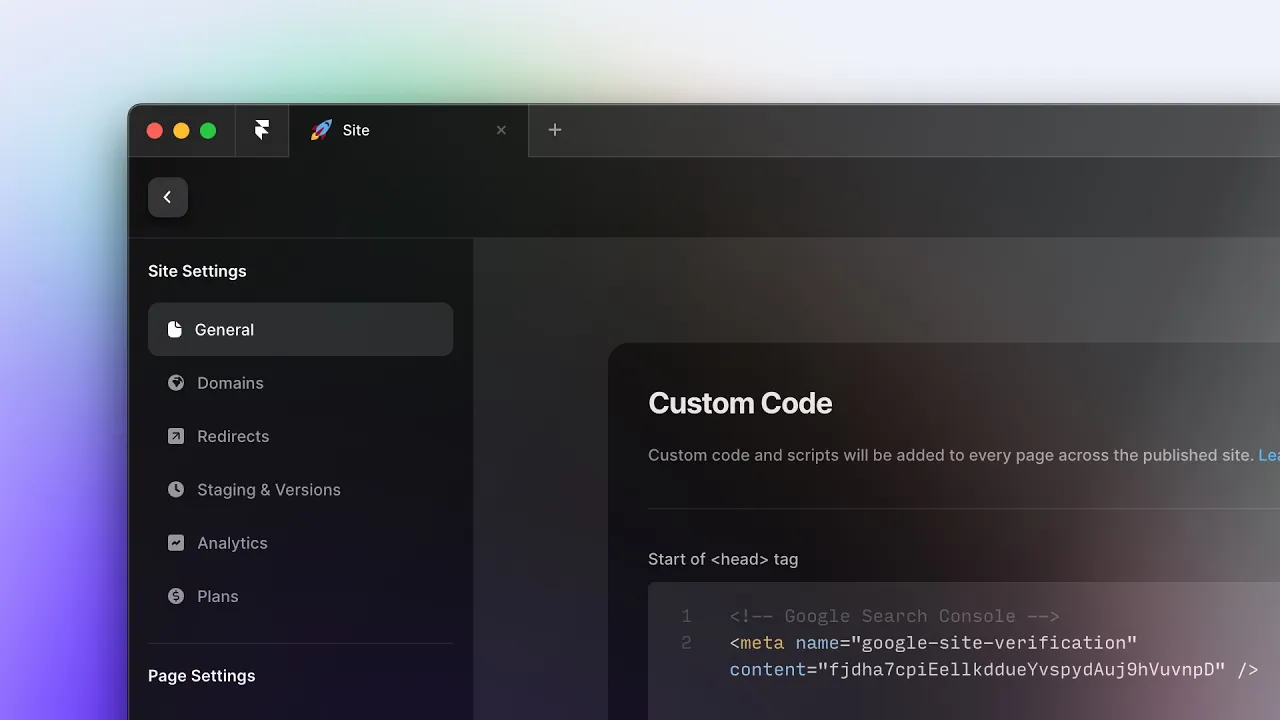
Add Custom Code to your site in Framer globally or on one page. This lesson shows where to place scripts in the head or body, when to use project-level or page-level settings, and why Custom Code must be tested on a published site. The example adds an external chat script to demonstrate both scopes.
Lesson details
In this Framer tutorial, you will learn Add Custom Code globally or to a single page. We explain a practical workflow, highlight the key settings that affect the result, and show how to apply the technique on real pages for cleaner UX and better site performance. See Selection Styles.
Frequently asked questions
Where do I add Custom Code in Framer?
Open Site Settings and find Custom Code to add a script across the complete site. To load a script on one page, open that page’s settings and add it to the page-level Custom Code section.
Can Custom Code run on only one page?
Yes. Add the script in the settings for that page instead of the global site settings. This keeps the code from loading on routes that do not need it.
Can I place code in the head or body?
Yes. Framer provides positions at the start or end of the head and body. Follow the instructions supplied with the script because third-party tools often require a specific placement.
Why does my Custom Code not appear in Preview?
Framer does not load Custom Code in the canvas preview. Publish the site and open the live page in a browser to test the script, then check the browser console if it does not load.
What should I check before adding a third-party script?
Confirm the script source, required placement, consent requirements, and pages where it should run. Extra scripts can affect privacy and performance, so remove code that your site no longer uses.
Continue watching
Load more