When you publish, Framer builds your site and then optimizes it for speed and SEO. This article explains what can go wrong at each stage and how to fix it.
Publishing errors
If something stops your site from publishing, a toast notification (a small pop-up message) appears saying “Failed to publish because there is an error on a page”, along with a Review button.
Publishing errors usually come from one of two causes:
A component took too long to build. The site compiler timed out while waiting for a component. In your browser’s web inspector, you may see an error like
ensureComponentsInLoader: Component loader not updated in time.A component is missing. A component can become unavailable after a file rename, a function rename, or a loading error.
To fix a publishing error:
Click Review in the toast notification.
Look in the layer panel for a grey error placeholder. This marks the missing component.
Fix or replace the missing component.
Publish your site again.
If the error came from a timeout, try publishing again first. If it keeps happening, fix or remove the component that’s causing it.
What optimization does
Framer sites are built with React. Optimization pre-renders your site on the server, so visitors see your content right away instead of a blank page while React loads in the background.
During this step, the server doesn’t know anything about the visitor, such as their cookies, window size, or language. If a custom code component or override tries to use this information, it fails to run and you’ll see an optimization warning.
Check your optimization status
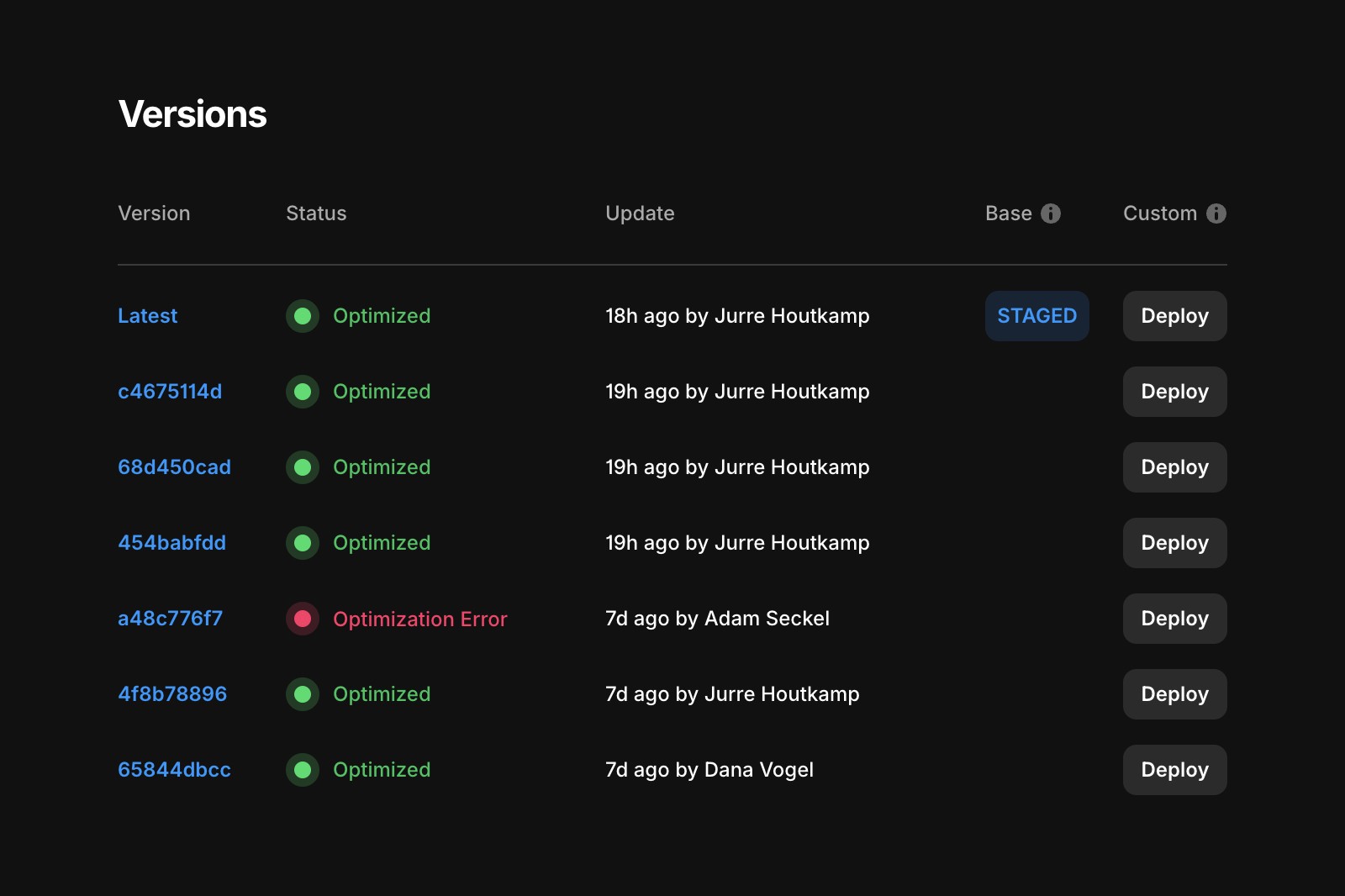
You can check your site’s optimization status in Settings → Domains or Settings → Versions. You’ll see one of these statuses:
Optimized: Your site was optimized with no issues.
Optimization Warning: Your site was optimized, but something went wrong along the way, usually in a custom code component or override. Visitors may see parts of the page missing while it loads, and nested links can make your site less accessible.
Optimization Error: One or more pages couldn’t be optimized. These pages aren’t server-rendered, bundled, or minified, so they load more slowly, rank worse in search, and score lower on Core Web Vitals (Google’s page experience metrics).
Fix custom code warnings
Most optimization warnings come from custom code that uses browser-only APIs like window, document, or navigator. These APIs don’t exist during server-side rendering, when Framer pre-renders your pages without a browser.
When a code component tries to use them on the server, Framer hides the component and tries to render it again once the page loads in the browser. Until then, that part of the page is missing, which can confuse your visitors.
To fix it, follow How to fix custom code optimization errors.
If you’re still having trouble, reach out to us through our contact page.
FAQ
Will my site still go live if it has an optimization warning?
Yes. A warning means your site was published and optimized, but some custom code didn’t run on the server. Fixing it makes sure visitors see the full page as soon as it loads.
What happens if I ignore an optimization error?
The affected pages still work, but Framer serves them without pre-rendering. They load more slowly and are likely to rank lower in search results, so it’s worth fixing them.
Why does publishing fail only sometimes?
Timeout errors depend on how long a component takes to build, so they can come and go. If retrying works only occasionally, the component is probably too slow or unstable, and you should fix or replace it.